
Make better notes from video
How to use a YouTube summarizer thoughtfully
A useful video summary helps you find the main idea, decide what deserves your attention, and return to the source with better questions. It can turn a long interview, lesson, or presentation into a manageable set of notes. It cannot carry every detail, demonstration, or qualification from the original video. Use this YouTube summarizer to get oriented, then watch the sections that matter to your task. The strongest workflow combines a concise overview with your own judgment about what the speaker actually said and showed.
Start with a public video or a transcript
Choose the YouTube link option when you have a public video you want to understand. Copy its address from YouTube, paste it into the tool, and select your summary preferences. The video must be accessible to the service; private, removed, restricted, or otherwise unavailable videos may not work. A working link in your own browser does not guarantee that it can be processed here.
The transcript option is useful when you already have the spoken text. Paste a coherent passage, keeping speaker names and timestamps when available. Remove unrelated menus, comments, and repeated captions. Check the current length limits beside the input. A transcript summary describes the text you supply, so missing sections remain missing context.
When a transcript is too long for the displayed limit, split it at natural topic boundaries rather than in the middle of an explanation. Include a short heading to identify each part, and preserve nearby sentences that define unfamiliar terms. Summarize the parts separately, then compare their notes yourself. Avoid joining fragments from unrelated videos into one submission: a model may connect them in ways the original speakers never intended. Keep each source clearly labeled throughout the process.
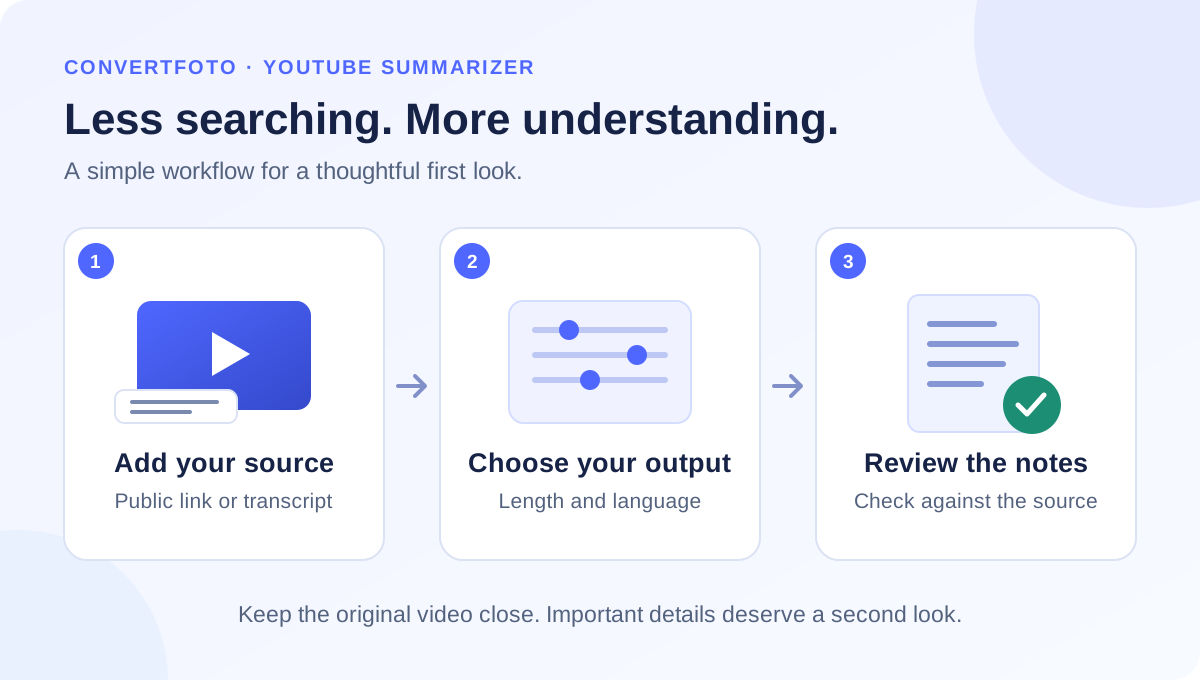
Choose the right length and language
A short summary suits a first look: what is the subject, what are the central points, and is the video relevant? A detailed summary gives more room for explanations and supporting context. Neither setting guarantees that every topic will appear. If a particular example matters, check the original rather than assuming its absence means the speaker never mentioned it.
Select the output language that helps you work comfortably. When summarizing across languages, double-check specialized terms, names, and ambiguous wording. Keep original terminology alongside translated notes when you need to discuss the source accurately with other people.
Build a repeatable summary workflow
Before submitting, write down your purpose: preparing for class, comparing explanations, planning an interview, or deciding whether to watch the full video. That question will help you judge whether the generated notes are useful. Read the whole result once, then identify the ideas that answer your question. Separate those ideas from your own interpretations.
Keep the video address with your notes. Add the creator, title, and viewing date yourself when you need a reliable reference. If you paste only an extract, label it as an extract. This small habit prevents a summary of one section from being mistaken for coverage of an entire video.
Verify facts, quotes, and timestamps
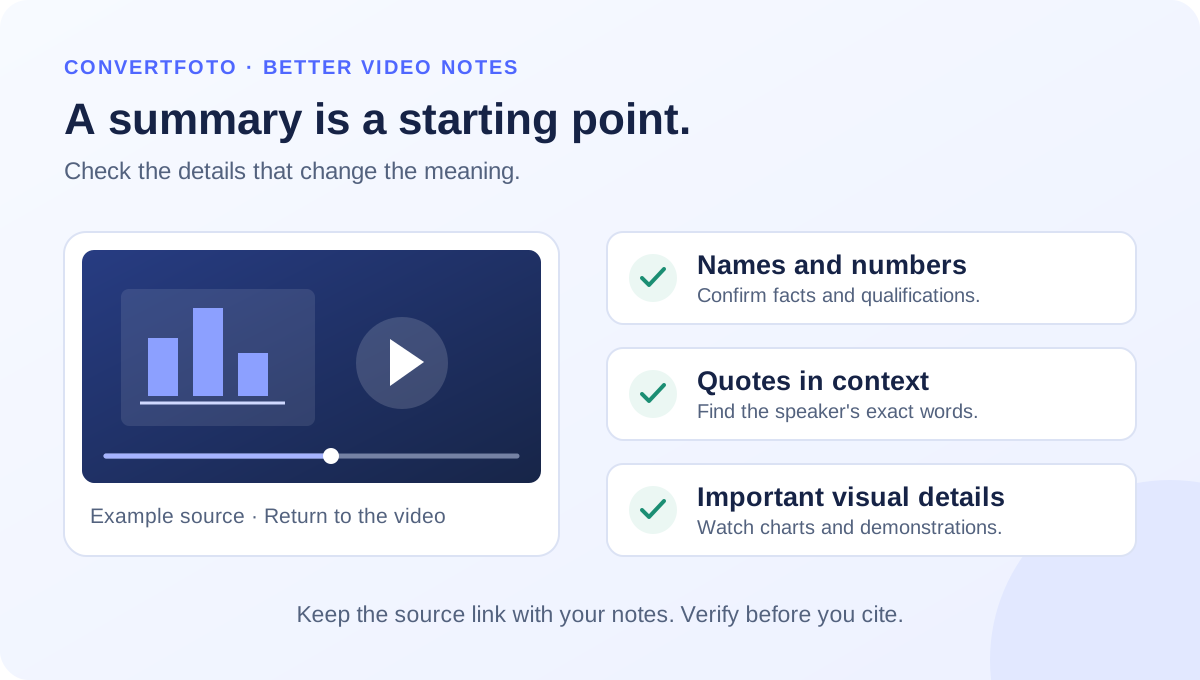
AI summaries can misunderstand a sentence, omit a condition, or connect points the speaker kept separate. Check names, dates, measurements, and conclusions against the video or transcript. Pay particular attention to words such as “may,” “usually,” and “only”: losing a qualifier can change the meaning of a claim.
If a timestamp is supplied, treat it as a navigation aid and confirm the relevant moment yourself. A transcript without timing information cannot establish precise video timestamps. Do not turn a paraphrase into a quotation. For a direct quote, find the speaker's exact words in the source and preserve the surrounding context. A generated summary is not independent evidence that a claim is true.
Know when you still need to watch
Some lessons depend on what appears on screen: a formula, a chart, a software setting, a physical movement, or a comparison between photographs. A written overview may compress or miss those details. Transcript mode only receives the text you paste; it does not inspect the video's visuals. Watch demonstrations directly before following the steps. Tone, irony, and disagreement also need context, especially when several people speak or the captions contain mistakes. Use the summary to locate useful material, then spend your attention where accuracy matters.
Practical uses for study, research, and creation
University students and adult learners can use a summary as a first outline, then add definitions, examples, and questions while watching. Test your understanding by explaining an idea in your own words before checking the notes again. For research, keep summaries from different videos separate so conflicting claims do not blend into a single unsupported conclusion.
Creators can identify themes from an interview or public presentation and develop their own commentary. Credit the original source when referring to its ideas. A summary does not grant permission to republish someone else's content. For team discussions, share the source link alongside the notes so colleagues can inspect the same material.
For example, after summarizing a lesson, divide your notes into three columns: the main claim, an example from the video, and a question to investigate. Fill the example column only after checking the source. If the lesson gives a sequence of steps, preserve their order and note any prerequisites. This turns a quick overview into a working study document without presenting generated text as your own completed research. Revisit uncertain points before sharing the notes.
Connect your notes with other useful tools
If you are reviewing written material, the AI Text Detector offers an estimated AI likelihood; its score is not proof of authorship or a check that facts are correct. The YouTube Downloader is a separate tool for supported videos you are permitted to save; summarizing does not require downloading a file.
For a presentation or study handout, annotate an existing document with the PDF Editor. Prepare your own supporting images with the Image Editor, change their format using the Image Converter, and reduce file sizes with the Image Compressor. Keep illustrations relevant and credit any material that needs attribution.
Handle limitations and personal information carefully
Processing can fail because a video is unavailable, the service is busy, or a usage allowance has been reached. Follow the message shown by the tool. If you have an appropriate transcript, that mode offers another way to work with the content. The Help Center links to guidance for other ConvertFoto tools.
Submit only material you are allowed to share. Requests are sent to ConvertFoto and an external AI service for processing. Remove personal information, confidential meeting notes, account details, and anything you would not want shared with that service. Review the privacy policy before submitting sensitive material.
Public video summaries may be cached for up to 24 hours to serve repeat requests. This tool does not persistently store pasted transcripts or their summaries. The external service's own processing and retention policies still apply.