
A useful food photograph shows what a dish is like: its ingredients, texture, size, and presentation. You do not need a studio to communicate that clearly. The biggest improvements usually come from choosing the light and camera position before cooking, then making small changes you can compare.
This guide takes you from a real plate of food to a finished image for a recipe, menu, or social post. It also explains how to create a graphic from a photo and when an AI illustration is appropriate.
1. Decide what the image needs to show
Choose the destination first. A recipe photo should help a reader recognize the finished meal. A restaurant menu photo should show the portion and ingredients customers receive. A banner needs room for a headline; a small menu thumbnail needs a simple composition that remains readable when reduced.
Before the food is ready, put an empty plate on the surface and frame it. Check whether your intended crop will cut off the plate, a tall garnish, or the top of a drink. Leave a little extra space around the subject so you can make a second crop later.
- Basic kit: a phone or camera, a clean lens, a stable surface, a plain plate, and a piece of white card.
- Helpful extras: a phone support or tripod, a neutral cloth, and one utensil that suits the meal.
- Prepare first: choose the background and camera position, clear clutter, and take a test frame before plating.
Keep an untouched copy of each original photograph. Editing and exporting copies lets you return to the full image if a crop or color adjustment goes too far.
2. Use one soft light and control the shadows
Start beside a window with indirect daylight. Put the window to one side of the plate so gentle shadows reveal texture. If direct sun creates hard shadows or bright patches, move the dish out of the sun or soften the window light with a sheer curtain.
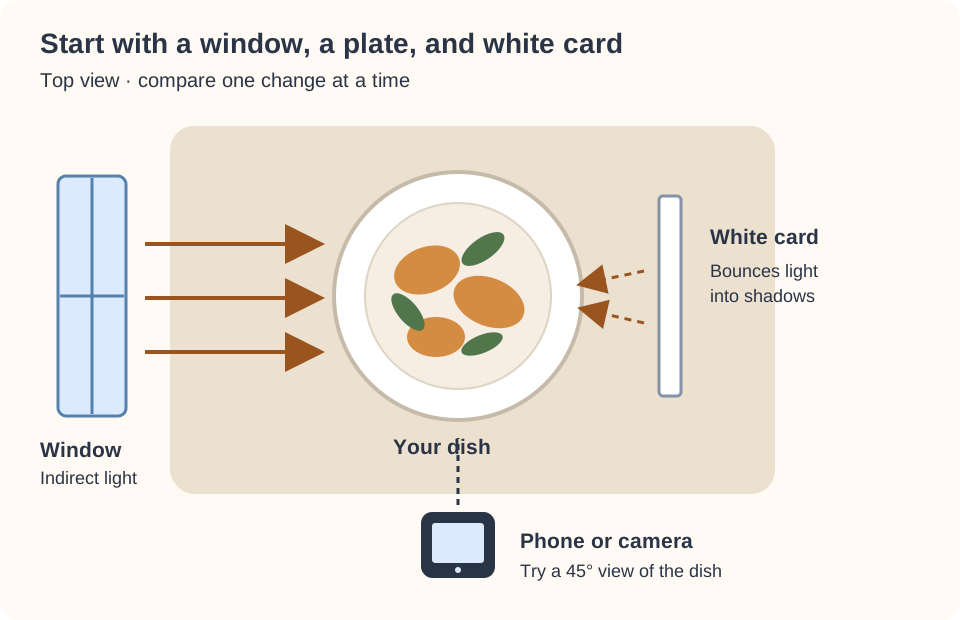
Place white card opposite the window and compare two shots: one with it and one without. Use it when the dark side of the food loses detail. If the dish looks flat, move the card farther away instead of brightening everything in editing.
Turn off nearby warm lights if they create an orange cast alongside the daylight. Avoid direct phone flash as your first choice; it can produce harsh reflections on sauce and a bright plate with a dark background. For drinks or glossy food, try moving the window behind and slightly to the side, then check that the front remains visible.
Nikon's food photography lighting guide explains side lighting, backlighting, and using white card to fill shadows. Treat these as starting arrangements and compare the results on your own dish.
3. Style the dish so its important details stay visible
Serve the food as you want someone to experience it. Wipe accidental smears off the rim, turn the most recognizable ingredients toward the camera, and separate overlapping pieces when they hide the texture. Add delicate herbs and final sauce just before shooting.
Take a clean frame with only the dish, then add one prop. A fork can suggest scale; a napkin can introduce color. Remove anything that competes with the meal. A busy patterned plate, several unrelated ingredients, and multiple utensils can make a small image hard to read.
Prepare the setup before bringing out ice cream, wilt-prone greens, or hot food whose appearance changes quickly. Photograph the finished presentation promptly, then experiment with extra arrangements. Adobe's food photography guide discusses preparation, incremental styling, and working with light and depth of field.
4. Choose an angle that explains the dish
Try three viewpoints before moving the food. The best angle depends on the shape and detail you want to show, rather than a rule that every meal needs the same treatment.
| Dish | Starting viewpoint | What to check |
|---|---|---|
| Pizza, salad, or a shallow bowl | Directly overhead | Keep the camera parallel to the surface and show the topping arrangement. |
| Pasta, curry, or a plated meal | About 45 degrees | Show both the top and some depth; do not let the bowl rim hide the food. |
| Burger, sandwich, or cake slice | A low viewpoint | Make the layers or cut interior visible, with a quiet background behind them. |
| A glass of juice or a tall dessert | Near the subject's height | Check the outline, reflections, and space above the glass or topping. |
For an additional photo reference, visit TastyFoto. When looking at a food image, ask: Where does the light come from? Which detail is sharpest? How much background is included? Use those questions to plan your own photograph rather than copying an image or assuming it is free to reuse.
5. Focus carefully and keep the camera steady
On a phone, start with the main camera at its normal view. Move yourself to adjust framing before relying on digital zoom. Tap the part of the food that matters most, such as a crisp crust or the cut side of a sandwich. If your camera offers an exposure control, reduce brightness when pale food or a white plate loses visible detail.
Rest your elbows, use a support, or use the camera timer to reduce movement. Check a magnified preview before clearing the setup: a sharp plate rim does not help if the food is soft. Portrait mode can blur plate edges or thin garnishes incorrectly, so compare it with a regular photo.
With a camera that has manual controls, choose enough depth of field to show the important parts of the meal and a shutter speed that avoids visible movement. Use a tripod when light is low. Heavy background blur can suit a detail shot, but a recipe or menu image may need more of the dish in focus.
6. Edit a food photo without changing the dish
Select a frame with good focus and usable highlights before opening an editor. A strong filter cannot restore missing texture or correct a badly blurred subject. Compare your adjustments with the original as you work.
- Straighten and crop
Open the ConvertFoto photo editor. Use Crop to remove distractions and try an aspect ratio that fits the placement. Keep the key ingredients and enough of the plate to make the framing feel deliberate.
- Adjust brightness gently
Start with a small Brightness adjustment in the editor's Filter tool and compare it with the original. Check a neutral part of the scene for an unwanted color cast. If the cast is strong, try another frame in consistent light before applying color effects. Keep tomatoes, greens, and cooked surfaces believable.
- Inspect detail
Look closely at herbs, grain, crust, and sauce. Stop when the image reads clearly at its intended size. If the food still looks soft because the capture was out of focus, choose another frame.
- Keep a master and export a copy
Save the finished edit separately from the original. Use the image converter when you need another format or dimensions, then check the downloaded file before publishing.
7. Create a menu graphic, cutout, or concept image
Build a graphic from your own photograph
For a recipe card or social post, crop your photo with space beside the dish and add a short title in the photo editor. Keep text away from the food and test its readability at the final display size. A plain background and restrained type usually communicate better than several decorative effects.
If the layout needs a separate dish cutout, use ConvertFoto background removal and save the transparent PNG. Inspect the plate rim, steam, glass, and delicate herbs: automatic removal can miss them. Keep the original background when it provides a useful natural shadow or when the cutout looks unconvincing.
Use AI images for clearly identified concepts
An image generator can help explore a fictional dish or plan an editorial illustration. For an actual restaurant offering or a recipe result, photograph the meal you serve or cooked. A generated image may invent ingredients, portion sizes, or a texture your dish does not have.
If you use a separate image generator, describe the dish, viewpoint, light, surface, and intended layout. For example:
Editorial concept illustration of a bowl of tomato soup with basil, viewed at 45 degrees on a plain pale table, soft window light from the left, space on the right for a headline, no lettering in the image.
Inspect the output for inconsistent utensils, impossible garnishes, distorted bowls, and odd reflections. Label it near the image, for example, AI-generated concept image; not a photograph of a served dish. ConvertFoto's tools linked here edit, convert, compress, or remove backgrounds from images; this workflow uses a separate generator for the concept itself.
8. Prepare the finished file for its destination
Match the dimensions to the layout. For example, an image shown 600 pixels wide may use a 1200-pixel-wide export for a sharper display on a high-density screen. That is a layout example, not a requirement for every platform. Check the current upload requirements where you plan to publish, and avoid enlarging a small original expecting new detail.
- JPEG: a practical choice for a food photograph when broad compatibility matters.
- WebP: an option for a website that supports it; compare the quality and file size with JPEG.
- PNG: useful for a transparent dish cutout. Converting a blurry JPEG to PNG does not recover detail.
For JPEG or PNG copies, use the ConvertFoto image compressor to reduce file size, then inspect the result at the size readers will see. Check fine herbs, crispy edges, and smooth sauce for lost detail. Choose quality by the result rather than promising a fixed percentage reduction.
On a recipe page, use a descriptive filename such as roasted-vegetable-couscous.jpg and alt text that explains the actual image, such as Roasted carrots and zucchini over couscous in a white bowl. For a generated illustration, describe it as an illustration. Keep the picture close to the relevant recipe or menu text, and do not fill filenames or alt text with repeated keywords.
Fix common food photography problems
| Problem | First change to try |
|---|---|
| The meal looks flat | Move the light to one side and move the white card farther away. Compare the texture and shadows. |
| Greens look orange | Turn off competing warm room lights and take a new photo in the same window light. |
| The plate is sharp but the food is soft | Refocus on the important ingredient, steady the camera, and check the result enlarged. |
| A sauce has a bright reflection | Change the plate or camera angle slightly before trying to reduce highlights in editing. |
| Props dominate the picture | Remove one prop and crop more closely while keeping the dish recognizable. |
| The exported photo looks smeared | Compare it with the master at the same display size; retry with less compression or a larger export. |
Practice with one dish
Choose one meal and keep the camera and surface the same. Photograph it with side light, add white card for a second frame, then try overhead, angled, and low viewpoints. Choose the clearest view, take one clean composition and one with a prop, and export your favorite for its intended placement.
Compare the frames side by side. Which one shows the food's texture? Which crop survives as a small thumbnail? Does the edited color still match the meal? This exercise gives you a repeatable setup you can use next time.
Before you publish
- The dish is sharp and its key ingredients are visible.
- Color, portion, and presentation match what the image claims to show.
- The final crop and any text work at the display size.
- The downloaded file has acceptable detail and file size.
- You own or have permission to use the image; concept illustrations are identified clearly.
This guide was created with AI assistance to organize practical shooting and editing steps. The linked Nikon and Adobe guides provide further photography context. The setup diagram is an illustration; it is not a photograph of a tested dish.